
Guide
Colouring with Apple Pencil on iPad
A Pencil does not make a colouring app good on its own. What matters is how the app handles fills, pressure, zoom and undo — here is what to look for, and how Color the Look does each one.
An iPad with an Apple Pencil is close to the ideal colouring surface. The page is bright, the nib is precise, you can zoom into a detail the size of a fingernail, and nothing runs out. The catch is that plenty of colouring apps treat the Pencil as a slightly better finger, and the experience ends up worse than paper.
Fill first, brush second
The single biggest quality-of-life difference is whether the app fills by region or asks you to paint every pixel. Painting an entire pleated skirt with a brush is slow, and a slip of the wrist puts colour across the line you were following.
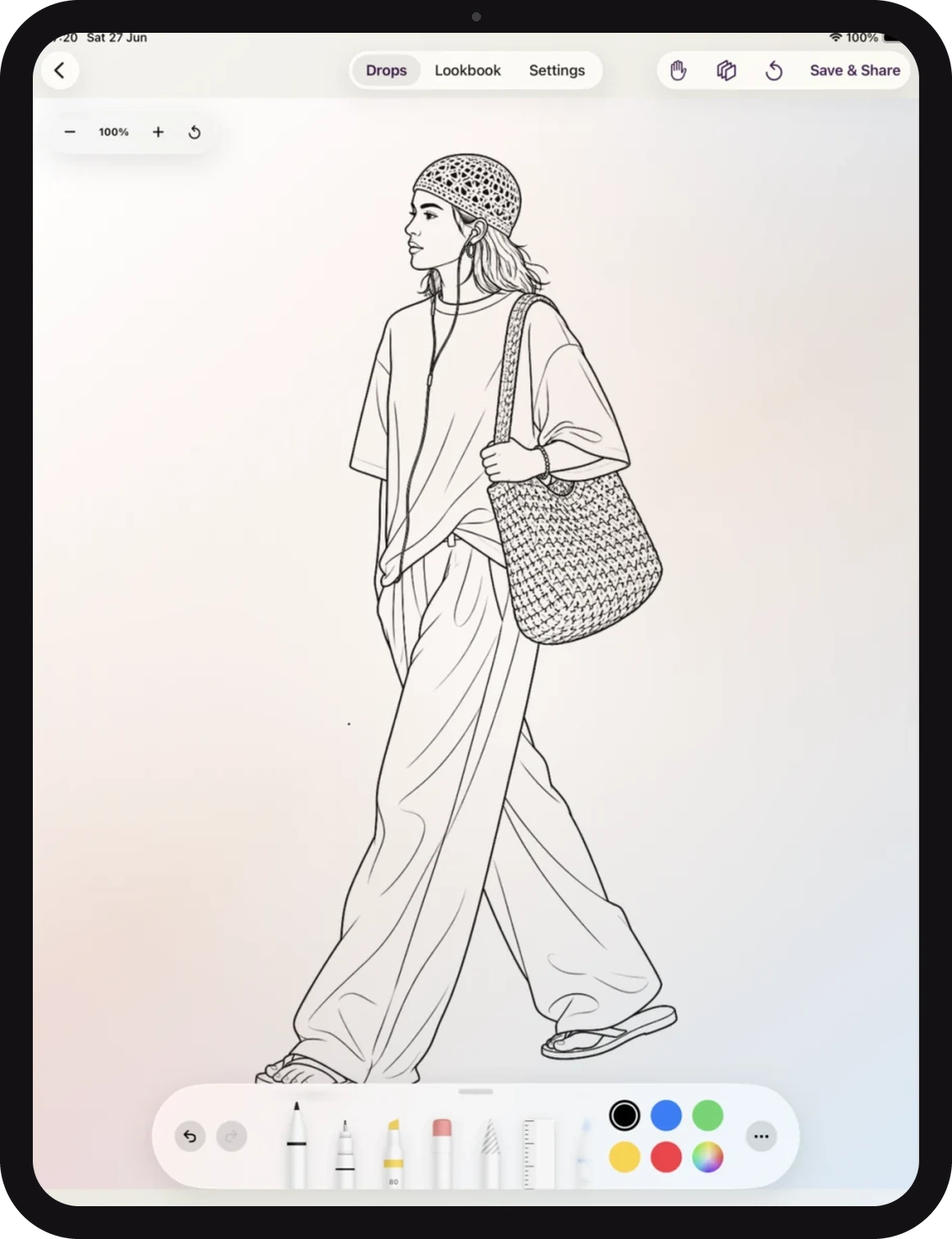
Region fill flips that around: tap a garment and it fills to its own edges, because the illustration was drawn with those edges defined. In Color the Look each page is divided into zones before it ships, which is why a tap on a sleeve stops at the cuff rather than bleeding into the hand. Once the blocks of colour are down, the Pencil is free for the part it is genuinely better at: shading, highlights and tiny details.
Pressure and tilt are for shading, not for outlines
Pressure sensitivity matters less than people expect on a colouring page, because the outlines are already drawn. Where it earns its keep is in building depth: a light pass along the fold of a satin skirt, a heavier press where a leather jacket creases. Tilt gives you a broad, soft edge for shadow without switching tools.
If you are new to it, the useful habit is to shade in one direction and stay there. Fabric folds run one way, and following them is what stops shading from looking like scribble.
Zoom is a feature, not a convenience
Lace, sequins, chain straps and jewellery are the parts of a fashion illustration that reward attention, and they are also the parts you cannot reach at 100%. An app that lets you pinch in deeply and keeps the line art crisp at that zoom level is doing real work — the artwork has to be stored at a much higher resolution than the screen shows.
Undo has to be free
The reason digital colouring relaxes people is that mistakes cost nothing. A colour that looked right in your head and wrong on the page should be one gesture away from gone. If undo is buried, capped, or slow, you start playing it safe, and playing it safe is the opposite of why anyone colours.
Textures do what a Pencil cannot
Some materials are simply not worth drawing by hand. Sequins are hundreds of tiny reflective discs; tweed is a woven grid; lace is a repeating openwork pattern. Applying them as a material takes a second and reads correctly, and it leaves the Pencil for the parts where your judgement actually shows. Color the Look ships materials including leather, crinkled leather, suede, velvet, tweed, herringbone, knit, satin, sequins, glitter, chainmail, lace and plaid.
Try the fill before you install anything
The home page runs a real page from the app in your browser. Tap a garment to fill it and switch on a texture — it is the same idea as the app, minus the Pencil.
Colour a page in the browser →Frequently asked
Which Apple Pencil works with Color the Look?
Any Apple Pencil your iPad supports — 1st generation, 2nd generation, Apple Pencil Pro or Apple Pencil USB-C. The app uses standard PencilKit input, so pressure and tilt behave the way they do everywhere else on iPadOS.
Can I colour without an Apple Pencil?
Yes. Filling a garment is a single tap, so a finger works everywhere a Pencil does, including on iPhone. The Pencil mainly helps with shading and with very small details such as jewellery and lace.
Which iPad do I need?
Any iPad running iPadOS 17 or later. A larger screen makes fine details easier, but nothing is restricted to Pro models.
Does it work on iPhone too?
Yes, with the same collections and the same Lookbook. The iPad is simply the more comfortable canvas for long sessions.